Showing posts with label vscode. Show all posts

Wednesday, October 24, 2018

Let's build clean and Fast Angular application


The wait is over and Angular 7 is out, finally time has come to write about some tips to build fast angular application.In this blog i will share my experience with practices that you need to follow when you are starting a new project.

There are three primary things important when you are starting to build an application with Angular.
  1. Project Architecture
  2. Application Infrastructure
  3. Conventions,Formating and Tooling

CONVENTIONS,FORMATTING AND TOOLING : 

Always place the Angular application outside your backend code

Keep the application in its own repository so that can be deployed/versioned separately. It will also help in tooling. One key rule is to treat it as a real application.

Use VS Code for best experience 

Encourage your team to switch to VS Code which has immense support for development with Angular. It has strong support for extensions used in Angular projects and well regarded by front end community.

Use Tooling

It will kill all the disagreements. Use VS Code extensions such as TSLint, Angular Language servicePrettierEditorConfig and SCSS intellisence. 


Naming and Syntax Conventions

Always use Singular for Modules and Singular or Plural for components/services/directives and pipes


Use Angular style commit messages

'feat(notification.service): add display param'
'refactor(order models): rename couponId to couponCodeId

Use Codelyzer to do statistical analysis on Angular/Typescript code

It's a set of tslint rules for static code analysis of Angular TypeScript projects. If you are doing Continous deployment configure with your pipeline.


Follow Consistent component/directive/service/module

If you are using Angular-Cli always follow the same pattern to generate the necessary files so that it will be consistent throughout the application.


Absolute path for ES Modules

Alwasy use absolute path that would help in refactoring(moving files around or renaming) and very easy to organize files.


Do not use null and assign default values 

In the templates always use safe navigation type operator which can help in preventing the following annoying erros "cannot read property "name" of undefined"

Choose intelligent defaults and be consistent with them 

'' for string - declare string with default value ""
0 for number - declare numbe with default value 0
[] for arrays - declare array with default value []


Build small reusable components

Dont make your component code go more than 300 lines. Split the pieces that can be reused in a component and make them as a new component. The component should be made as dumb as possible. It should not dependent on any inputs or outputs provided it , it should work simple. General rule of thumb is to make the last child in the component tree to be the dumbest. Reusable components reduce the duplication of code and you can make changes easily.

Components should deal only with the presentation logic Dont have logic other than the presentation logic. Components are designed for presentational purposes and only should focus on what the view should do.Business logics should be separated out to services/methods from the presentation/view logic.


Use trackBy in ngFor Loops 

DOM manipulations are always expensive, immutable practices always generate a new collection which will result in bad performance. When your array changes, Angular will be rendering the whole DOM tree, when you use trackBy, it will know which elements has changed and will make changes only to those particular elements.


const vs let 

Make use of let and const wherever its appropriate. It will help a lot in identifying issues when a value is resassigned to a constant accidently with a compile error and it improves the readability of the code.

Pipeable operators 

With Angular version above 5.5 , you can use pipeable operators which are tree-shakable (only the code need to execute will be included when they are imported) and it will be easy to identify unsed code in the component files.


Subscribe in template 


Rather than subscribe in service or async popes unsubscribe themself automatically it will make the code simpler by stopping the need to manually manage subscriptions which could cause a memory leak. When using subscribe, the risks can be eliminated by using a lint rule to detect unsubscribed observables.


Clean up subscriptions 

When you subscribe in the component to observables, make sure you unsubscribe from them completely with operators like take,takeUntil,Unsubscribe etc


Use appropriate Operators 

switchMap: when you want to ignore the previous emissions when there is a new emission

mergeMap: when you want to concurrently handle all the emissions

concatMap: when you want to handle the emissions one after the other as they are emitted

exhaustMap: when you want to cancel all the new emissions while processing a previous emisssion


Stop using any:type everything in the code

Always declare variables or constants with a type other than any. This is the advantage that you have with Typescript when you have good typings in your application which makes refactoring easier and safe and also avoid unintented issues.


Use lint rules as you need

TSLINT has various options built in already like no-any, no-magic-numbers, no-console, etc that you can configure in your tslint.json to enforce certain rules in your code base


Dont Repeat Yourself 

One of the common mistake that i did as a developer was copy paste the same code in all components. Do not repeat or have the same code in different places in the code base. Extract the repeating code and make them as a generic method which could be used in diferent components.


Avoid Logic in component templates

Place the logic in the component file rather than on the template such as && condition since it cannot be possible to unit test also it is prone to more bugs when changing template code


APPLICATION INFRASTRUCTURE

Lazy load everything - When you are building application with large number of modules always do lazy loading which could improve your application performance by large margin. Angular CLI makes this easy and helps break up your app into logical bundles. With Lazy loading users only pay for what they want. For example, Sensitive (admin only) code will not be downloaded for users that don't have access.

Analyze your bundle - If you are using any bundling mechanism always analyze the size of the bundle generated. You can use webpack-bundle-analyzer for example and you can improve the performance there on.

Install source map explorer

npm install -g source-map-explorer

Build with source map
ng build --prod -sm

Inspect your bundle
source-map-explorer dist/vendor*.js

Debug.Service.ts - It is always good to have a common debug service to assist with the development. This service could replace the calls to console.log.  You can use Visual studio extension codelens to track down the calls with console.log.This service can be toggled at run time with local storage value and needs to be switched off with production builds.

RxJs Operators: When using it becomes handy to handle so many operations with Rxjs operators. Always remember to include/import only the things you need. Also make sure to add noUnusedLocals in the tsconfig.

Use ES Modules for helper functions: With ES Modules it is really easy to import only available when thy are needed.

Keep environment values in environment files: It becomes really easy and very helpful to manage environment values when it comes to continous improvement and continous deployment. 

Avoid Bas classes / Inheritance: Even though Angular is build with Typescript, many of the developers tend to use services from a base class. This should be only if necessary. It will result in restricting the flexibility as when your app grows and use cases changes.
Also create a utility.services.ts to contain all the base helper services. For ex: debug.service.ts , notification.service.ts  session.service.ts can be placed within utility.service.ts which helps in preventing app wide changes to base constructor.

Use Obseravable/State Management Patterns: It is really important to follow Redux patern (RxJS) to have a better state management in application. Also in components use ngUnsubscribe for complex Observable management in Components. Use shareReplay operator and/or async pipe for simpler cases

More things to consider on Application : Always consier browser caching and application versioning. Test the update process and the experience across browsers. Always figure out user experience and continously work on it. Use global error handler to store repor errors to API and do not access Document or Window Objects manually.

ARCHITECTURAL THOUGHTS &  PROJECT STRUCTURE 
  • One of the primary thing that you need to consider before starting a project is the architecture on how to build flexible,simple,fast application. It needs lot of planning and consistency to get the basement correct. Building things is really hard enough. When it comes to building Angular application i would recommend to follow the following Guidelines
  • One best place to start with good practices is by following the recommended style guide. You need to take what works for your team and skip what does not work. Also try to learn from others mistakes or any other projects that you've already worked with. 
  • While designing module,s it is really important to know about how to structure your modules and what should go under Feature/Core/Shared Modules.


  • Keep a flat file structure as long as possible which means you should not add hierarchy with less than 20 files and you can always move files as the app grows larger.
  • Maintain your application version using the package.json which could be embeded in your app.
  • Use package management toolingto guarantee reproducible dev environment and builds.
  • Set custom host for the application by changing the default url.
  • Use proxies if you are integrating with an API. 
  • Lets look at what you can do while implementing the above architecture in your application

Follow this repository in order to get started

The above are the some of the most important practices that you need to follow when you are starting a  new project with Angular. Hope this helps someone out there. 

Sunday, March 18, 2018

Setting up Azure CosmosDB with Visual Studio Code in Local Environment


Recently I started experimenting with Azure's CosmosDB and developed few applications using the same. To start with it this blog will help all the Azure/CosmosDB developers out there to easily setup with visual studio code. I will be sharing how to connect to Azure CosmosDB without using the portal in local machine.

To start with it, You should have visual studio code installed on your machine. If not download it from here.

We need to setup an extension with visual studio code as a initial step. Azure CosmosDB extension for visual studio code gives developers set of cool commands to work with CosmosDB. With the help of Azure CosmosDB extension developers can easily do the actions which could be done on the azure portal such as Create,delete,modify databases,Collections,views and documents. Also the hierarchical representation will provide a better way to understand the structure of database.

Step 1:

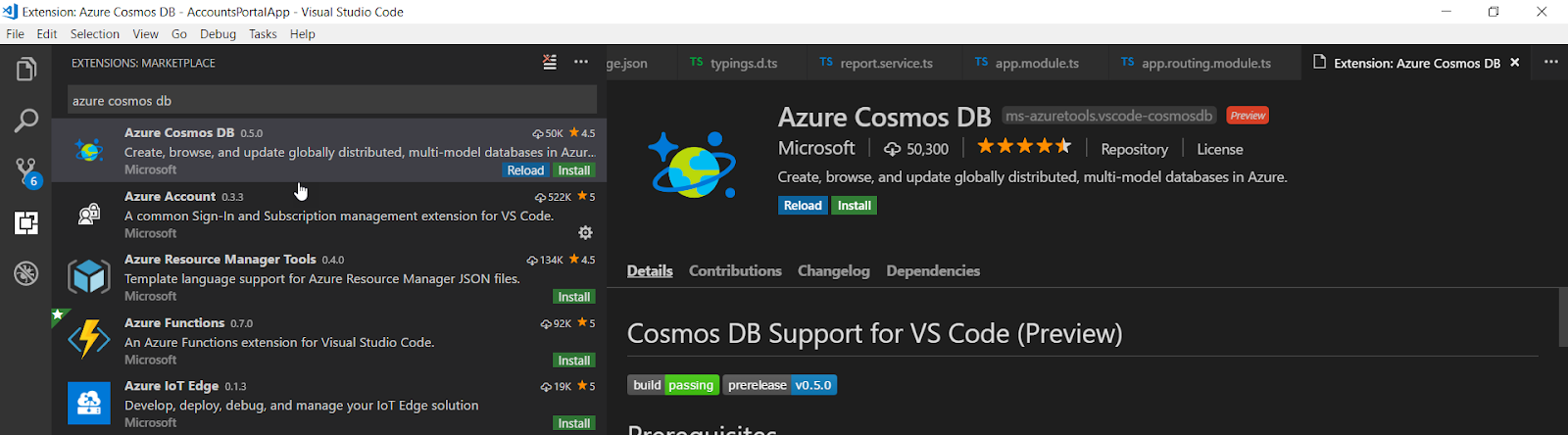
To start with, you must install the Azure CosmosDB from the market place. So, search for Azure Cosmos DB extension in the market place and click on install

Go to View - > Extensions or press Ctrl + Shift + X


Once the extension is installed, you can find Azure CosmosDB in explore section of visual studio code.


Step 2:

To explore the different types of commands with Azure Cosmos DB, open show all command palate and search for Cosmos. It will list down a different set of commands that you can play with,

Go to View - > Extensions or press Ctrl + Shift + P              


Step 3:

Now the extension is installed successfully. Lets see how to connect to Azure CosmosDB  in local machine. Move back to Azure CosmosDB extension section in the explorer panel. Sign in to Azure account to view the CosmosDB accounts inside the visual studio code alternatively you can select “Attach Database Account”


Select the specific Database Account API, in this case it is DocumentDB and enter the connection string copied from the portal


\
To get the connection string from the Azure Portal, navigate to the respective CosmosDB  Resource, and from the left side panel Settings –> Keys -> Connection String Copy the Primary Connection String.


Now you can see the database displayed with the account provided in the azure CosmosDB explorer pane.


That’s it Now you can Add, Modify Database, collection, and documents within Visual Studio Code. Play around with all the commands and features of the extension.

Step 4: Installing Azure Cosmos DB Emulator

Azure Cosmos DB Emulator provides a local environment that emulates the Azure CosmosDB service for your development. With the Azure Cosmos DB Emulator, you can develop and test your application locally, without creating an Azure subscription and without internet connection. With the extension we installed already you can connect with Local Emulator as well.
Download Azure CosmosDB emulator:
You can download emulator from Microsoft Download Center.
  1. Extract setup and run emulator exe.
  2. Once you completed the setup, type Azure Cosmos DB Emulator in Start menu.

Start the local Azure CosmosDB Emulator, and make sure it’s running. 

Verify the access by exploring the local emulator on this address.

https://localhost:8081/_explorer/index.html and you should see a screen as follows.


Step 5:
Once you verify your Azure Cosmos DB Emulator is running, you can go back to Visual Studio Code and try to attach the emulator by selecting Connected with Azure Cosmos DB Emulator option


After 1 or 2 minutes, you can find your local Cosmos DB data also mapped in Visual Studio Code.


As a developer I found this extension is very powerful and if you are developing Azure based solution with Visual Studio code, you must start exploring this.

Start building application with cosmosdb today 😊 Cheers!

Tuesday, January 30, 2018

Build a web API with .NET Core using CLI Tools

In this blog i will start with an introduction to .NET Core CLI tools with an example of how to create a web API using the CLI tools provided with .NET Core. At the end we will set up a solution grouping an API project and a test project. Let's dive into the steps,

Step 1 :  Installing the tools

Need to install .NET Core and Visual Studio Code that are supported on Mac, Unix and Windows. You can read more on how it works on multi-platform/framework.

Step 2 :  Creating the solution

Let's open the terminal/Powershell as a administrator to create our solution. Lets create a solution named DotNetCoreDemoApi

  dotnet new sln -o DotNetCoreDemoApi  

The above command will create a new folder and DotNetCoreDemoApi a solution file with the  name DotNetCoreDemoApi sln .


Lets get into that folder.

Step 3: Creating the web API project

Run the following command,

 cd DotNetCoreDemoApi 

Now that the solution is here, we can create our API project. Lets name the web API as DotNetCoreDemoApi. Run the following command to create the project.

dotnet new webapi -o DotNetCoreDemoApi  

That command will create a sub folder named DotNetCoreDemoApi  inside the solution DotNetCoreDemoApi and the ouput is as follows.


The web API folder should contain a few files generated as above  but what we require right now is DotNetCoreDemoApi.csproj. We will add a reference to it in our solution. To do so, run the following command:

 dotnet sln add ./DotNetCoreDemoApi/DotNetCoreDemoApi.csproj


Step 4: Run the Web API
After getting a confirmation message as above , lets start the API by running that command:

 dotnet run --project DotNetCoreDemoApi  


After a few seconds, it should display a message  that the API is now running locally as above. You may access it at http://localhost:5000/api/values which is the Values API default endpoint.

That's all , API is ready and it is up and running locally. I will continue setting up the TestProject in the same solution in the upcoming blog. With the DotNet core it is very feasible to get your web api setup and running in 5 minutes. 


Monday, January 1, 2018

Build Web Applications With Angular 5 Using Visual Studio Code

My first post for the year 2018 and i wanted to write something about a technology in which i have vast experience and passionate about. This blog will be very useful for those who want to start with angular for developing web applications.In this blog i am going to set up Angular 5 app using Visual Studio Code. I will be using Angular CLI for our sample application. The following are the steps needed to create your first angular application using angular5.

Steps
  • Install Node.js.
  • Install Angular CLI.
  • Design our  Angular App.
  • Launch  App in the browser.
  • Displaying our custom information on a page.

1. Install Node.js
In this approach, the first step is to install Node.js. If you have not installed nodejs in your machine visit the website and download according to your OS. You will see the following display.

Download and install the latest LTS version as per the configuration of your machine. The current version of Node LTS is 8.9.3. Installing node.js will also install npm (node package manager) on your system.
Next step is to make sure everything related to node is installed, To check the version of node and npm installed on your machine, run the following command in command prompt.
  • node -v 
  • npm -v

which will be as follows,


2. Install Angular CLI
We are done with the step1, next is to install angular cli. For those who are very new to angular , angular cli is a command line interface for angular applications. After installing node and npm, the next step is to install Angular CLI. Run the following command in a command window.
  • npm install -g @angular/cli

The above command will start Angular CLI installation on your machine. This might take bit of time  based on the internet connectivity.


 3. Design our  Angular App.
That's all folks, we have setup the necessary environment to start coding. Lets create our application in a folder named Angular5Demo. Run the following command to create a folder for our application.
  • mkdir Angular5Demo

lets navigate to our created folder, so run the following command.
  • cd Angular5Demo

we are in the same folder where our application resides, so lets create our template/structure for our application using angular cli. run the following command
  • ng new myFirstApp

if you have missed anything the following screen shows the steps and the output.
Lets see the code in visual studio code editor. Type code. in the command prompt.
  • code .  

Which will open up the code in the visual studio code. And that’s it.  You can see the following file structure in Solution Explorer. We have created our first Angular app using VS Code and Angular CLI.
4. Launch  App in the browser
 To launch the application and to start the web server run the following command 
  • ng serve 
After running this command, you can see that it is asking to open http://localhost:4200 in your browser. So, open any browser on your machine and navigate to this URL. Now, you can see the following page.


We'll leave the web server as it is while we look into the code of this application. Again open the code inside the path by typing the foolwoing command.
      code .
5. Displaying our custom information on a page.
Now, Let's display a message saying "" using JSON data on the page instead of the message “Welcome to app!”. To achieve this, open /src/app/app.component.ts file. Change it as follows or according to the data you want to see on the page.
and HTML template as,


Change the value of title property to a JSON object as shown above.  You can see the updated web page as shown below.
With angular cli If the web server is running and you make any changes in the Angular application, then you don’t need to refresh the web page. It will automatically update itself as you save the application code file. You can now play with the appellation by using various JSON objects also by making requests.
That's it folks, we have learned about creating our first Angular 5 app using VS Code and Angular CLI. Please post your valuable feedback in comments section.  

Friday, November 10, 2017

Angular Language Service - A handy extension for angular developers

Even though there have been plenty of tools/extension to check the typescript/javascript code, but there have not been any extension to validate the HTML code or related features to it. Angular Language Service was released to make the developers more productive and reduce the errors by offering better code completion. This service is available in the market place for installation for the Visual Studio as well as other code editors that support Type Script. Errors can be detected at the time of code creation . Hints are also provided for code completion. This effectively allows us to use the Intellisence for variables defined and used in the template. The navigation service is provided to link properties and their definition. This extension provides a rich editing experience for Angular templates, both inline and external templates including:


  • Completions lists
  • AOT Diagnostic messages
  • Quick info
  • Go to definition


The language service is developed by the Angular core team. At the time of writing, it is ready to use in VSCode, Sublime Text and WebStorm.

Language service uses the Angular compiler for parsing our application and producing diagnostics. It decorates the TypeScript language service in and uses its logic again. The coolest feature about the service is that it is not coupled to a specific Angular version and can be used in any text editor and IDE as soon as there’s an available plugin.

More about the language service can be found in the ng-conf talk by Chuck Jazdzewski (the creator of the language service) “Using the Angular Template Language Service”.

Start using in your angular projects and be more productive. Cheers!

Monday, July 31, 2017

Running Python Inside SQL Server

One of the valuable addition to data analytics by Microsoft was adding python into SQL server.Now SQL Server will support the two primary languages of Data Science within SQL Server R and Python. I am a fan of Python and  Python is near the top of the most popular programming language charts, many people are interested in learning more about it.  As many professionals are unfamiliar with Python, i wanted to this post about the same.

Installing Python in SQL Server


If you have already used R with SQL server then the process for using Python in SQL Server is very similar to it.  Microsoft renamed R Services to Machine Learning Services, and now allows both R and Python to be installed, as shown in the screen.  Microsoft’s version of Python uses Anaconda, which is an open source analytics platform created by Continuum. This is where Python differs from other open source languages, as Continuum is providing the version of Python as it contains data science components which are not included in the standard distribution of Python. Continuum also sells an enterprise version of Anaconda, with of course more features than come with the free version. Also it is mandatory and  important to remember the python environment as you will need select the same distribution when running Python code outside of SQL Server.

Configuration Changes for Python

The last thing needed to run Python is to configure and restart the SQL Server Services. In a new query type the following command

 sp_configure 'external scripts enabled', 1  
 GO  
 Reconfigure  
 GO  

After restarting the SQL Server Service, SQL Server will now run Python code. Since Python is easy to learn for even a novice developer. Code is easy to read and you can do a lot of things just by looking at it. Lets dig into python with sql server and do wonders with data analytics.

Saturday, November 26, 2016

I love Visual Studio Code


I've been a .Net developer since the beta days of .Net 3.0, Now i find myself doing less and less coding related with .Net related stuffs. However, the new strategy from Microsoft  encouraged all the developers including me to once again start doing some .Net work from time to time.
One of the highlighting tool among them was the Visual Studio Code.


Sublime text has been my favorite text editor all these time.When i downloaded it and looked at the first time my impression was nothing more than a plain editor with very little added value. Before VS code I have tried all popular editors - Sublime, Atom, Brackets etc. After trying it for few weeks now I feel developers  have everything they need .

Some of the highlights of VS Code are as follows,


  • Default integrated git system is really awesome.
  • Powerful debugging option.
  • Very smart code completion.
  • Huge list of Languages Support
  • Multi panel for side by side editing
  • Always-On IntelliSense
  • Debugging support
  • Peek Information like grammer correction
  • Command Palette


Choice of editor is a personal preference. If you like an lightweight IDE environment that's cross platform, you might enjoy VS Code. Give it a try, you will definitely love it.